%20--%3e%3csvg%20version='1.1'%20id='Layer_1'%20xmlns='http://www.w3.org/2000/svg'%20xmlns:xlink='http://www.w3.org/1999/xlink'%20x='0px'%20y='0px'%20viewBox='0%200%20120.17%2045.43'%20style='enable-background:new%200%200%20120.17%2045.43;'%20xml:space='preserve'%3e%3cg%3e%3cpath%20d='M32.33,0v16.13c0,2.21-0.42,4.3-1.26,6.26c-0.84,1.97-2,3.7-3.49,5.18c-1.49,1.49-3.2,2.65-5.15,3.49%20c-1.94,0.84-4.04,1.26-6.3,1.26c-2.21,0-4.3-0.42-6.26-1.26c-1.97-0.84-3.68-2-5.15-3.49c-1.46-1.49-2.62-3.21-3.46-5.18%20C0.42,20.42,0,18.34,0,16.13V0h6.41v16.13c0,1.34,0.25,2.62,0.76,3.82c0.5,1.2,1.2,2.24,2.09,3.13c0.89,0.89,1.92,1.58,3.1,2.09%20c1.18,0.5,2.44,0.76,3.78,0.76c1.34,0,2.62-0.25,3.82-0.76c1.2-0.5,2.24-1.2,3.13-2.09c0.89-0.89,1.58-1.93,2.09-3.13%20c0.5-1.2,0.76-2.47,0.76-3.82V0H32.33z'%20fill='%232563eb'%20/%3e%3cpath%20d='M50.4,0.14c2.26,0,4.36,0.42,6.3,1.26c1.94,0.84,3.66,1.99,5.15,3.46c1.49,1.46,2.65,3.17,3.49,5.11%20c0.84,1.94,1.26,4.04,1.26,6.3c0,2.21-0.42,4.3-1.26,6.26c-0.84,1.97-2,3.7-3.49,5.18c-1.49,1.49-3.2,2.65-5.15,3.49%20c-1.94,0.84-4.04,1.26-6.3,1.26h-9.72v12.96h-6.41V16.27c0-2.26,0.42-4.36,1.26-6.3c0.84-1.94,1.99-3.65,3.46-5.11%20c1.46-1.46,3.18-2.62,5.15-3.46C46.1,0.56,48.19,0.14,50.4,0.14z%20M54.22,25.31c1.2-0.5,2.24-1.2,3.13-2.09%20c0.89-0.89,1.58-1.93,2.09-3.13c0.5-1.2,0.76-2.47,0.76-3.82c0-1.34-0.25-2.6-0.76-3.78c-0.5-1.18-1.2-2.21-2.09-3.1%20c-0.89-0.89-1.93-1.58-3.13-2.09c-1.2-0.5-2.47-0.76-3.82-0.76c-1.34,0-2.6,0.25-3.78,0.76c-1.18,0.5-2.21,1.2-3.1,2.09%20c-0.89,0.89-1.58,1.92-2.09,3.1c-0.5,1.18-0.76,2.44-0.76,3.78v9.79h9.72C51.74,26.06,53.02,25.81,54.22,25.31z'%20fill='%232563eb'/%3e%3cpath%20d='M94.03,20.95l4.54,4.54l-2.23,2.23c-1.54,1.54-3.29,2.71-5.26,3.53c-1.97,0.82-4.03,1.22-6.19,1.22%20c-2.16,0-4.22-0.41-6.19-1.22c-1.97-0.82-3.72-1.99-5.26-3.53c-1.58-1.58-2.76-3.37-3.53-5.36c-0.77-1.99-1.15-4.02-1.15-6.08%20c0-2.06,0.38-4.08,1.15-6.05c0.77-1.97,1.94-3.74,3.53-5.33s3.37-2.77,5.36-3.56c1.99-0.79,4.02-1.19,6.08-1.19%20c2.06,0,4.09,0.4,6.08,1.19c1.99,0.79,3.78,1.98,5.36,3.56l2.23,2.23L80.64,25.06c1.82,0.91,3.75,1.21,5.8,0.9%20c2.04-0.31,3.83-1.24,5.36-2.77L94.03,20.95z%20M77.98,9.36c-1.92,1.92-2.88,4.22-2.88,6.91c0,1.49,0.33,2.9,1.01,4.25%20c0.58-0.58,1.45-1.45,2.63-2.63c1.18-1.18,2.42-2.42,3.74-3.74c1.32-1.32,2.59-2.58,3.82-3.78c1.22-1.2,2.17-2.14,2.84-2.81%20c-1.83-0.91-3.76-1.22-5.8-0.94C81.3,6.91,79.51,7.82,77.98,9.36z'%20fill='%232563eb'%20/%3e%3cpath%20d='M120.17,0v6.41h-3.24c-1.35,0-2.61,0.25-3.78,0.76c-1.18,0.5-2.21,1.2-3.1,2.09c-0.89,0.89-1.58,1.92-2.09,3.1%20c-0.5,1.18-0.76,2.44-0.76,3.78v16.2h-6.48v-16.2c0-2.26,0.42-4.36,1.26-6.3c0.84-1.94,2-3.65,3.49-5.11%20c1.49-1.46,3.21-2.62,5.18-3.46c1.97-0.84,4.06-1.26,6.27-1.26H120.17z'%20fill='%232563eb'/%3e%3c/g%3e%3c/svg%3e)

1. Introduction — why you need Google Search Console
Google Search Console is one of the most important tools every website owner should know and use regularly. It shows how your site appears in Google, which errors affect its rankings, and how to improve visibility in search results.
In 2026, GSC is also the only official source of data about how Google sees your site — in an era where AI Overviews, zero-click searches and Google constantly rewriting your titles make the picture from third-party tools (Ahrefs, Semrush) drift further from reality. Without GSC you are working on indirect data only.
This guide takes you from basic setup to advanced features (BigQuery, Looker Studio, the 24-hour view, low-CTR analysis) — useful both if you are logging into GSC for the first time and if you want to squeeze more out of the tool.
2. What is Google Search Console?
Google Search Console (GSC) is a free Google tool that lets you monitor and manage your website’s visibility in search results.
What you can do with GSC
- Check which pages Google has indexed
- Identify errors that prevent your site from being displayed
- Analyze which keywords users use to find your site
- Monitor backlinks pointing to your site
- Check if your site meets Core Web Vitals and other technical requirements
3. Why GSC is essential for SEO
Without Google Search Console, managing SEO effectively is nearly impossible. A few key reasons:
- Direct signal from Google — GSC is Google telling you what works and what needs fixing.
- Indexing error monitoring — a fast response to issues prevents ranking drops.
- Keyword effectiveness analysis — you learn which phrases drive traffic and which need optimization.
- UX and site speed improvement — Core Web Vitals reports guide your optimization for both users and algorithms.
- Detecting manual actions — GSC notifies you about any penalties imposed by Google.
4. How to use Google Search Console — practical guide
4.1 Setup and site verification
- Log in to your Google account (or create one).
- Add your site address in GSC (e.g. https://yoursite.com).
- Verify ownership — the simplest methods are adding an HTML meta tag or DNS verification in your domain panel.
Tip: DNS verification is the most durable and doesn’t require code changes on your site.
4.2 Search results analysis
- Check how many clicks and impressions your pages generate.
- Analyze CTR (Click-Through Rate) — if it’s low, optimize your titles and meta descriptions.
- Track average position for important keywords.
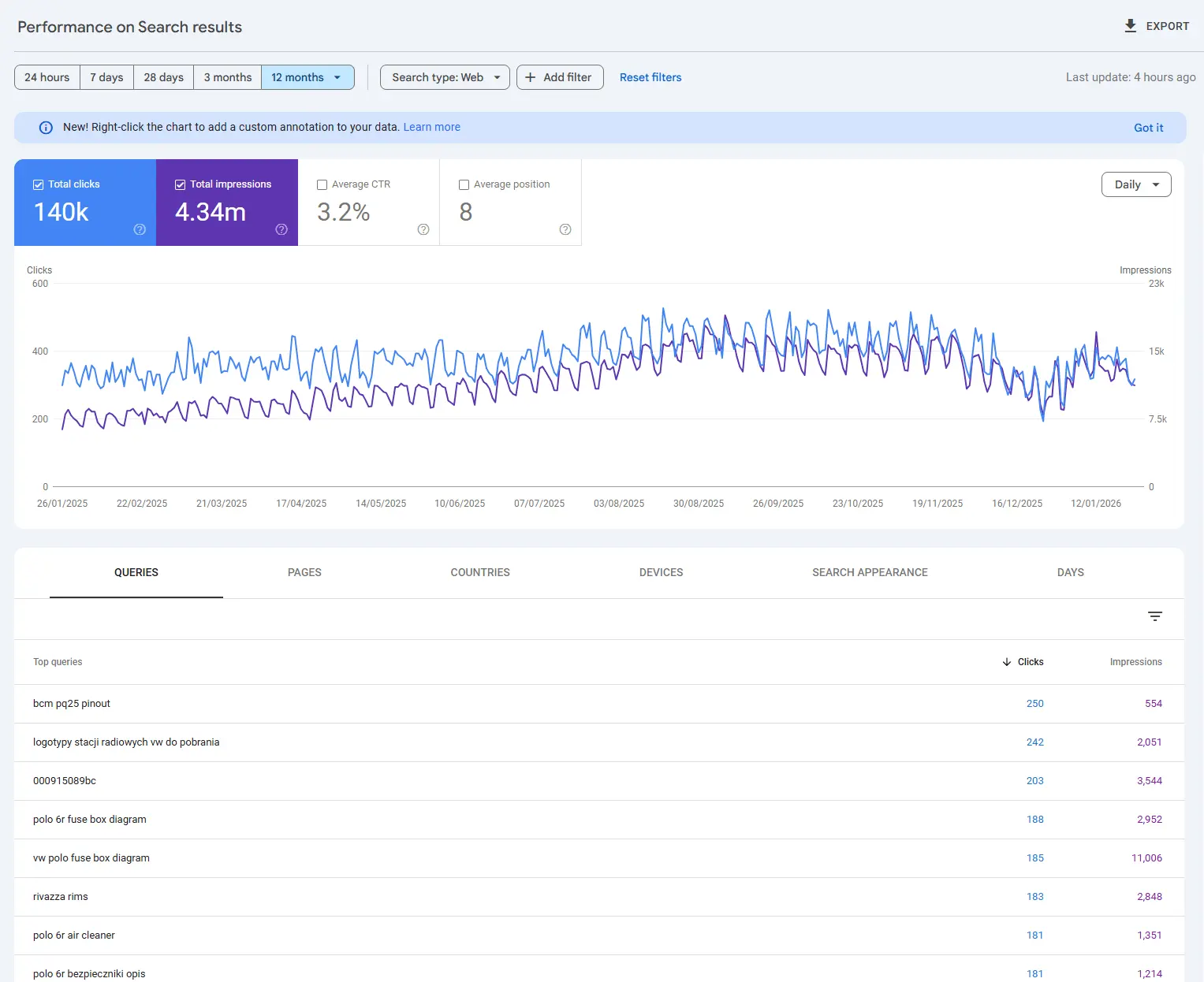
Example: if a page has lots of impressions but a low CTR, try rewriting the title or description to encourage clicks.
4.3 Indexing and page coverage
- Check which pages are indexed and which have errors.
- Fix errors like “404 Not Found”, “noindex”, or Googlebot access problems.
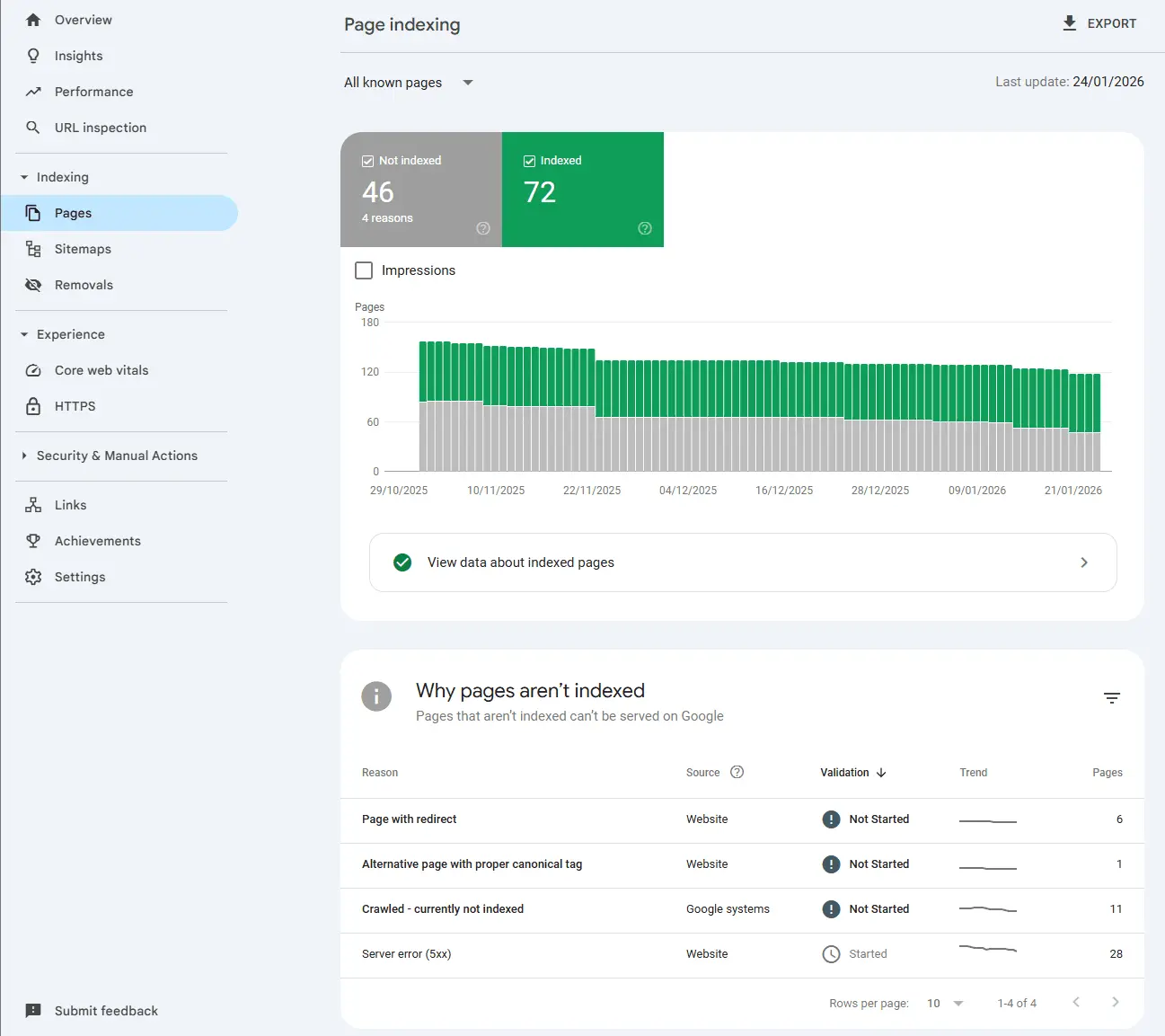
Important: fewer errors means better site visibility.
4.4 Sitemaps
- Submit your sitemap.xml file in GSC — this helps Google find all your pages faster.
- Update your sitemap after every major change on the site.
You can generate a sitemap automatically using popular CMSs or SEO plugins. For a detailed breakdown of analyzing, auditing, and optimizing the file, see the complete sitemap.xml and indexing guide.
4.5 Enhancements
- Monitor Core Web Vitals: loading speed, interactivity, and visual stability.
- Check the validity of structured data (schema.org), which can enrich your search result appearance — e.g. rating stars (Review/AggregateRating), Product, Breadcrumb, Article with author.
Note (May 2026): Google turned off FAQ rich results on May 7, 2026, and the “FAQ search appearance” report disappears from GSC in June. FAQPage schema still makes sense for AI Overviews, Bing, and voice assistants, but it no longer expands anything inside Google SERPs. Full timeline: Google ends FAQ rich results.
4.6 Manual actions and security issues
- Manual actions: GSC will notify you if Google has penalized your site (for spam, unnatural links, thin content). This requires immediate reaction — fix the problem and submit a reconsideration request.
- Security issues: this report warns about threats such as malware, phishing attempts, or site compromises. Resolving these is an absolute priority.
4.7 Links
- Analyze links pointing to your site (internal and external).
- Detect and disavow spammy links that can harm your SEO.
4.8 URL Inspection tool
- Test individual pages for indexing status and structured data correctness.
- Check whether Google sees the most recent changes on the page.
4.9 Removing URLs
- Temporarily remove outdated or incorrect pages from the index.
- Remember that permanent removal requires the right status code (e.g. 410).
5. Advanced features and strategies in GSC
Basic features are only the beginning. The real power of GSC lies in its advanced analytical and diagnostic capabilities.
5.1 Advanced query analysis in the “Search results” report
- Data segmentation: use filters to compare results by search type (web, images, video), date, page, country, or device. This helps optimize content for different formats and audiences.
- Spotting “hidden gems”: look for queries with high impressions but low CTR and an average position of 8-15. These are high-potential phrases that can rank much higher with minor optimization (improved
titleandmeta description). Pay particular attention to long-tail SEO queries — they usually have lower competition and higher purchase intent. - Query change analysis: regularly watch new queries appearing in the report. This can signal new trends or gaps in your content.
5.2 Effective indexing management
- “Page indexing” report: prioritize fixing errors (4XX, soft 404), analyze exclusion reasons (e.g. “Page with redirect”, “Discovered — currently not indexed”) and make sure important pages aren’t accidentally blocked by robots.txt.
- URL Inspection tool: debug problems on individual pages. See how Googlebot renders the page, whether it is indexed, and whether there are mobile usability issues.
- Multiple sitemaps: for large sites, consider splitting your sitemap into smaller thematic files (e.g.
sitemap-blog.xml,sitemap-products.xml). This makes diagnosing problems in specific sections much easier.
5.3 Reading performance and enhancement reports
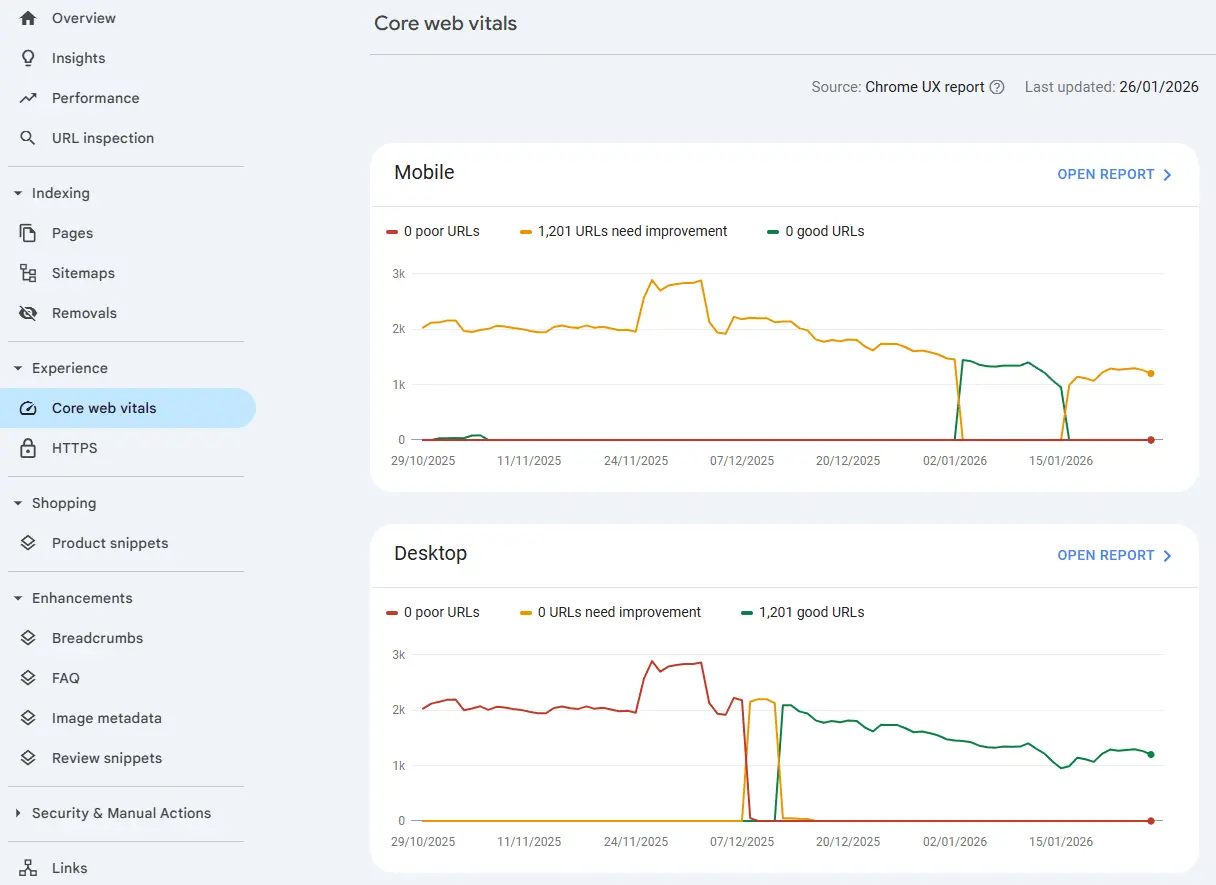
- Core Web Vitals: analyze problematic URLs, group them by templates (e.g. category pages, products) and prioritize optimization. INP replaced FID back in March 2024 and is now the hardest metric to keep green — most regressions come from third-party JS. Dedicated deep-dives per metric: LCP optimization guide, CLS debugging, INP vs FID.
- Mobile usability: make sure your site provides an excellent experience on smartphones.
- Structured data (Schema.org): fix errors that prevent rich results from showing, and test markup with the “Rich Results Test” tool. Focus on schemas Google still supports: Product, Review/AggregateRating, Breadcrumb, Article with author, Event, Recipe, Video. The “FAQ search appearance” report and HowTo are now deprecated — the FAQ section is being removed from GSC in June 2026, and from the API in August.
5.4 GSC Insights and the 24-hour view
Search Console Insights — the dashboard that combines GSC and GA4 data — is now a standard part of GSC, not an experiment. You can find it at search.google.com/search-console/insights or directly from the Performance report.
- Best-performing content — quickly see which articles generate the most traffic.
- New content — a summary of how freshly published pages perform in their first days after indexing.
- Queries that bring users to your site — a simplified view of the top queries by clicks.
- Where users come from — search traffic vs. other sources (if you connected GA4).
The Performance report also includes a last-24-hours view — the data delay dropped from ~2-3 days to tens of minutes. Right after publishing an article or changing a title you see the first impressions, which makes this view the go-to tool for measuring the effect of A/B tests on titles and meta descriptions, and for a fast check on whether a fresh page has even made it into the SERPs.
5.5 Bulk Data Export to BigQuery and Looker Studio dashboards
The Performance report in the GSC interface has a hard 1,000-row limit — not enough for larger sites. Two ways around it:
- Bulk Data Export to BigQuery (available since 2023) — a daily export of full search data into your BigQuery project. No row limit, no retention limit. Ideal for long-tail query analysis and seasonal patterns. BigQuery cost is typically a few dollars per month for an average site.
- Looker Studio (formerly Data Studio) — a free integration with GSC as a native data source. Lets you build dashboards combining GSC data with GA4, ads, and Google Sheets. Great for client reports and monitoring multiple sites at once.
Practical tip: if you have more than 50,000 unique queries per month, BigQuery stops being optional and becomes a necessity. Without it you won’t see the full query tail, which is exactly where the most interesting opportunities usually hide.
5.6 Integrating GSC with other tools and automation
- Google Analytics 4: connect GSC with GA4 to analyze query data alongside on-site user behavior (session duration, bounce rate, conversions). If you’re still migrating from Universal Analytics, see the UA → GA4 migration guide.
- GSC API: use the API to automate data collection and build custom reports — invaluable when managing multiple sites.
- Redirect automation: the GSC API lets you export all 404 pages to CSV. Based on that, you can automatically generate 301 redirects — a simple script pulls data from the API, analyzes broken URLs, and creates redirect rules (in
.htaccess, nginx config, Netlify’s_redirectsfile, or directly inside the app). For large sites this is a huge time-saver, eliminating manual creation of hundreds of redirects. - IndexNow and Bing Webmaster Tools: GSC only shows data from Google. If you care about Bing and Yandex (as well as AI search engines that rely on their index, such as ChatGPT Search), set up Bing Webmaster Tools and the IndexNow protocol in parallel. These complement GSC rather than replace it.
- Visibility in LLMs (ChatGPT, Perplexity, Claude, Gemini): GSC won’t tell you whether language models cite your content. That needs a separate stack — server logs filtered by AI user-agents,
llms.txtfiles, brand-mention monitoring. See how to make your site visible to LLMs.
5.7 A practical rhythm for working with GSC
Most GSC problems come from people only opening the tool when something already feels wrong. The biggest wins come from a steady, short rhythm.
Daily (2-3 min):
- The 24-hour view in the Performance report — watch for sudden drops in clicks or impressions.
- Notifications (the bell icon) — Google signals manual actions, security issues, and new indexing errors here. Anything new is worth investigating within the day.
Weekly (15-20 min):
- Performance report comparing the last 7 vs prior 7 days — which pages gained or lost clicks. Filter by country and device if your traffic is geographically concentrated.
- Page indexing report — new 4XX, soft 404, “Discovered — currently not indexed”. Every new error bucket = a ticket.
- URL Inspection on 1-2 freshly published pages to confirm Google sees and renders them correctly.
Monthly (60 min):
- Full Core Web Vitals review — check for new templates with regressions (e.g. after a deploy).
- Crawl stats (Settings → Crawl stats) — make sure crawl budget isn’t being wasted on garbage URLs (parameters, faceted navigation, pointless pagination).
- Links report — new linking domains and meaningful shifts in “Top linked pages”.
- Export the top 50 queries by impressions and compare with the previous month — that’s the map showing where competitors and AI Overviews are eating your CTR.
Quarterly:
- Long-tail audit in BigQuery (if you have Bulk Data Export enabled) — hunt for queries with >100 impressions and CTR below 1%.
- Sweep of old URLs stuck on “Discovered — currently not indexed” — decide per URL: improve content, merge into another page, or retire with a 410.
6. What to do when a page has many impressions but few clicks (low CTR)
If the Performance report shows a page with thousands of impressions but only a handful of clicks, you have a classic low-CTR problem. Google is showing your result, but users keep picking competitors. A tested recovery path:
- Diagnose the real position. In the Performance report, enable the “Average position” checkbox and filter to the specific URL. A CTR below 2% at positions 1-3 is a red flag. A CTR below 1% at positions 8-15 is normal — there you need better rankings first, not a better title.
- Analyze the SERP manually. Type the main query in incognito mode. Check what Google shows: rich results, AI Overview, Featured Snippet, People Also Ask, videos, maps. Each of these elements cannibalizes organic CTR, even if your position looks great. Scale of the shift: zero-click searches exceed 60% of queries, and AI answers don’t kill traffic the way the headlines suggest — worth looking at the data, not the hot takes.
- Check whether Google is rewriting your title. Around 60% of the time, Google displays its own version of the title instead of yours. If the SERP title differs from your
<title>tag, that’s a signal Google considers your title a poor match for the query. - Rewrite
titleandmeta descriptionwith focus on:- Intent match — use the exact words searchers type.
- Year (“2026”, “latest”, “current”) — signals freshness.
- Numbers and specifics (“7 steps”, “5 minutes”, “complete guide”).
- No promises you can’t keep — clickbait raises CTR short-term but increases bounce rate, and Google notices.
- Add structured data that Google still supports. Article with author, Product, Review/AggregateRating, Breadcrumb, Recipe, Event, and Video can expand the result in the SERP and boost CTR. Stop counting on FAQ and HowTo — both formats are being retired (FAQ rich results disappeared in May 2026, HowTo back in 2023). FAQPage schema still has value, just not inside Google SERPs — full context in Google ends FAQ rich results.
- Wait 14-28 days. GSC data is delayed, and Google needs time to re-evaluate the new title. Don’t change anything during that window.
Tip: if many pages suffer from low CTR, don’t optimize all of them at once. Start with the top 5-10 pages by impressions — they give the biggest traffic upside per hour of work.
7. Common mistakes when using GSC and how to avoid them
Even experienced users make mistakes. A few of the most common traps:
- Misreading “Discovered — currently not indexed”: this status doesn’t always mean a problem. Sometimes Google decides the page isn’t valuable enough to index. Instead of forcing indexation, focus on improving content quality.
- Ignoring “Soft 404” errors: these pages return 200 OK but Google considers them empty or near-empty. Google treats them like 404s, and they waste crawl budget.
- Overusing the URL removal tool: this is a temporary tool. Using it for permanent removal is a mistake. For permanent removal, use the
noindextag or a 410 status code. - Focusing only on click counts: also analyze CTR, average position, and impressions. A low position with high impressions often signals great potential.
Frequently asked questions about Google Search Console
How do I add my site to Google Search Console?
Go to search.google.com/search-console, click "Add property" and choose a verification method. The fastest options are DNS verification or HTML file upload. After verification, GSC starts collecting data within 24-48 hours.
How do I check which pages are indexed in Google?
In Google Search Console, navigate to Indexing > Pages. You will see a list of indexed URLs and those with errors. You can also use the "URL Inspection" tool at the top to check a specific page.
How often does Google Search Console update data?
Performance data (clicks, impressions) is updated with a 2-3 day delay, and the 24-hour view shows traffic almost in real time. Indexing reports may take several days to fully refresh. Core Web Vitals data is based on a rolling 28-day CrUX dataset.
Is Google Search Console free?
Yes, Google Search Console is completely free. You only need a Google account and verified site ownership. There are no paid plans or usage limits. The only indirect cost appears when using Bulk Data Export to BigQuery (BigQuery storage and query fees, typically a few dollars per month).
Why is my page not indexed even though I submitted it in GSC?
The most common reasons are: "Discovered — currently not indexed" (Google considered the page low value), a robots.txt block, a noindex tag, a canonical URL pointing elsewhere, thin content, or duplication of another page. Use the "URL Inspection" tool in GSC — it shows the exact reason. Clicking "Request indexing" does not help if the issue is content quality.
How long does Google take to index a new page?
For an established site with a good sitemap and internal linking: typically 24-72 hours. For a new domain: from a few days to several weeks. If the page hasn't appeared after 2 weeks, check the Page indexing report in GSC — Google has probably visited it but chose not to index it.
What is crawl budget and can I see it in GSC?
Crawl budget is the number of pages Googlebot crawls on your site within a given period. You can find it in GSC under Settings > Crawl stats. For small sites (fewer than 10,000 pages), crawl budget is rarely a problem. For large sites and e-commerce, it's worth monitoring and optimizing via sitemaps, link structure, and removing dead URLs.
How do I check backlinks in Google Search Console?
Open the Links report in the side menu. You will see "Top linking sites" and "Top linked pages". GSC shows fewer backlinks than tools like Ahrefs or Semrush — these are data from Google's perspective, not a full index. For a complete link-building analysis, complement GSC with third-party tools.
Why do I have many impressions but a low CTR in GSC?
This is a classic symptom of three possible issues: (1) the title and meta description don't entice clicks; (2) the position is too low (8-15), so users click earlier results; (3) the SERP is dominated by rich elements (AI Overview, Featured Snippet, maps, videos) that cannibalize organic CTR. We describe the full diagnosis and fix plan in the "What to do when a page has many impressions but few clicks" section above.
Does the FAQ report in GSC still work?
On May 7, 2026, Google stopped displaying FAQ rich results in search. In June 2026 the "FAQ search appearance" report and Rich Results Test support disappear from GSC, and in August 2026 FAQ support is removed from the Search Console API. FAQPage schema in your code still makes sense for AI Overviews, Bing and voice assistants, but it no longer expands the result inside Google SERPs. Full background and the "remove or keep" decision: Google ends FAQ rich results.
8. Sources
- Official Google Search Console documentation
- Google Search Central blog
- Bulk Data Export to BigQuery — documentation
- Search Console API reference
- Core Updates — archive
- FAQPage documentation — rich results deprecation note (May/June/August 2026)
9. Summary
Google Search Console is a powerful and free tool that helps you understand how Google sees your site and improve its visibility. Mastering both basic features (indexing, sitemaps, standard reports) and advanced ones (BigQuery, Looker Studio, low-CTR analysis, GSC Insights) is key to a successful SEO strategy in 2026.
Don’t wait — unlock the full potential of Google Search Console and start optimizing your site today! If you need help with a GSC audit or interpreting reports, check our SEO audit service or get in touch.