%20--%3e%3csvg%20version='1.1'%20id='Layer_1'%20xmlns='http://www.w3.org/2000/svg'%20xmlns:xlink='http://www.w3.org/1999/xlink'%20x='0px'%20y='0px'%20viewBox='0%200%20120.17%2045.43'%20style='enable-background:new%200%200%20120.17%2045.43;'%20xml:space='preserve'%3e%3cg%3e%3cpath%20d='M32.33,0v16.13c0,2.21-0.42,4.3-1.26,6.26c-0.84,1.97-2,3.7-3.49,5.18c-1.49,1.49-3.2,2.65-5.15,3.49%20c-1.94,0.84-4.04,1.26-6.3,1.26c-2.21,0-4.3-0.42-6.26-1.26c-1.97-0.84-3.68-2-5.15-3.49c-1.46-1.49-2.62-3.21-3.46-5.18%20C0.42,20.42,0,18.34,0,16.13V0h6.41v16.13c0,1.34,0.25,2.62,0.76,3.82c0.5,1.2,1.2,2.24,2.09,3.13c0.89,0.89,1.92,1.58,3.1,2.09%20c1.18,0.5,2.44,0.76,3.78,0.76c1.34,0,2.62-0.25,3.82-0.76c1.2-0.5,2.24-1.2,3.13-2.09c0.89-0.89,1.58-1.93,2.09-3.13%20c0.5-1.2,0.76-2.47,0.76-3.82V0H32.33z'%20fill='%232563eb'%20/%3e%3cpath%20d='M50.4,0.14c2.26,0,4.36,0.42,6.3,1.26c1.94,0.84,3.66,1.99,5.15,3.46c1.49,1.46,2.65,3.17,3.49,5.11%20c0.84,1.94,1.26,4.04,1.26,6.3c0,2.21-0.42,4.3-1.26,6.26c-0.84,1.97-2,3.7-3.49,5.18c-1.49,1.49-3.2,2.65-5.15,3.49%20c-1.94,0.84-4.04,1.26-6.3,1.26h-9.72v12.96h-6.41V16.27c0-2.26,0.42-4.36,1.26-6.3c0.84-1.94,1.99-3.65,3.46-5.11%20c1.46-1.46,3.18-2.62,5.15-3.46C46.1,0.56,48.19,0.14,50.4,0.14z%20M54.22,25.31c1.2-0.5,2.24-1.2,3.13-2.09%20c0.89-0.89,1.58-1.93,2.09-3.13c0.5-1.2,0.76-2.47,0.76-3.82c0-1.34-0.25-2.6-0.76-3.78c-0.5-1.18-1.2-2.21-2.09-3.1%20c-0.89-0.89-1.93-1.58-3.13-2.09c-1.2-0.5-2.47-0.76-3.82-0.76c-1.34,0-2.6,0.25-3.78,0.76c-1.18,0.5-2.21,1.2-3.1,2.09%20c-0.89,0.89-1.58,1.92-2.09,3.1c-0.5,1.18-0.76,2.44-0.76,3.78v9.79h9.72C51.74,26.06,53.02,25.81,54.22,25.31z'%20fill='%232563eb'/%3e%3cpath%20d='M94.03,20.95l4.54,4.54l-2.23,2.23c-1.54,1.54-3.29,2.71-5.26,3.53c-1.97,0.82-4.03,1.22-6.19,1.22%20c-2.16,0-4.22-0.41-6.19-1.22c-1.97-0.82-3.72-1.99-5.26-3.53c-1.58-1.58-2.76-3.37-3.53-5.36c-0.77-1.99-1.15-4.02-1.15-6.08%20c0-2.06,0.38-4.08,1.15-6.05c0.77-1.97,1.94-3.74,3.53-5.33s3.37-2.77,5.36-3.56c1.99-0.79,4.02-1.19,6.08-1.19%20c2.06,0,4.09,0.4,6.08,1.19c1.99,0.79,3.78,1.98,5.36,3.56l2.23,2.23L80.64,25.06c1.82,0.91,3.75,1.21,5.8,0.9%20c2.04-0.31,3.83-1.24,5.36-2.77L94.03,20.95z%20M77.98,9.36c-1.92,1.92-2.88,4.22-2.88,6.91c0,1.49,0.33,2.9,1.01,4.25%20c0.58-0.58,1.45-1.45,2.63-2.63c1.18-1.18,2.42-2.42,3.74-3.74c1.32-1.32,2.59-2.58,3.82-3.78c1.22-1.2,2.17-2.14,2.84-2.81%20c-1.83-0.91-3.76-1.22-5.8-0.94C81.3,6.91,79.51,7.82,77.98,9.36z'%20fill='%232563eb'%20/%3e%3cpath%20d='M120.17,0v6.41h-3.24c-1.35,0-2.61,0.25-3.78,0.76c-1.18,0.5-2.21,1.2-3.1,2.09c-0.89,0.89-1.58,1.92-2.09,3.1%20c-0.5,1.18-0.76,2.44-0.76,3.78v16.2h-6.48v-16.2c0-2.26,0.42-4.36,1.26-6.3c0.84-1.94,2-3.65,3.49-5.11%20c1.49-1.46,3.21-2.62,5.18-3.46c1.97-0.84,4.06-1.26,6.27-1.26H120.17z'%20fill='%232563eb'/%3e%3c/g%3e%3c/svg%3e)

1. Introduction — Why Should You Know Google Search Console?
Google Search Console is one of the most important tools that every website owner should know and use regularly. It helps you understand how your site appears in Google, what errors affect its rankings, and how to improve visibility in search results.
Did you know that proper GSC usage can increase organic traffic by up to 20%? Whether you’re just starting your SEO journey or looking to optimize an existing site, this article is for you.
2. What is Google Search Console?
Google Search Console (GSC) is a free Google tool that allows you to monitor and manage your website’s visibility in search results.
What can you do with GSC?
- Check which pages Google has indexed
- Identify errors that prevent your site from displaying properly
- Analyze which keywords users use to find your site
- Monitor links pointing to your website
- Check if your site meets Core Web Vitals and other technical requirements
3. Why is GSC Essential for SEO?
Without Google Search Console, it’s difficult to effectively manage SEO. Here are some key reasons:
- Direct information from Google – GSC is Google’s voice telling you what works and what needs improvement.
- Indexing error monitoring – quick response to issues helps avoid ranking drops.
- Keyword effectiveness analysis – learn which phrases drive traffic and which need optimization.
- UX and site speed improvement – Core Web Vitals reports help optimize for users and algorithms.
- Detecting and fixing manual actions – GSC will inform you about any penalties imposed by Google.
4. How to Use Google Search Console? Practical Guide
4.1 Configuration and Site Verification
- Log in to your Google account (or create a new one).
- Add your website address in GSC (e.g., https://yoursite.com).
- Verify site ownership — the easiest methods are adding an HTML meta tag or DNS verification in your domain panel.
Tip: DNS verification is the most permanent and doesn’t require code changes on your site.
4.2 Search Results Analysis
- Check how many clicks and impressions your pages generate.
- Analyze CTR (Click-Through Rate) — if it’s low, optimize titles and meta descriptions.
- Monitor average position for important keywords.
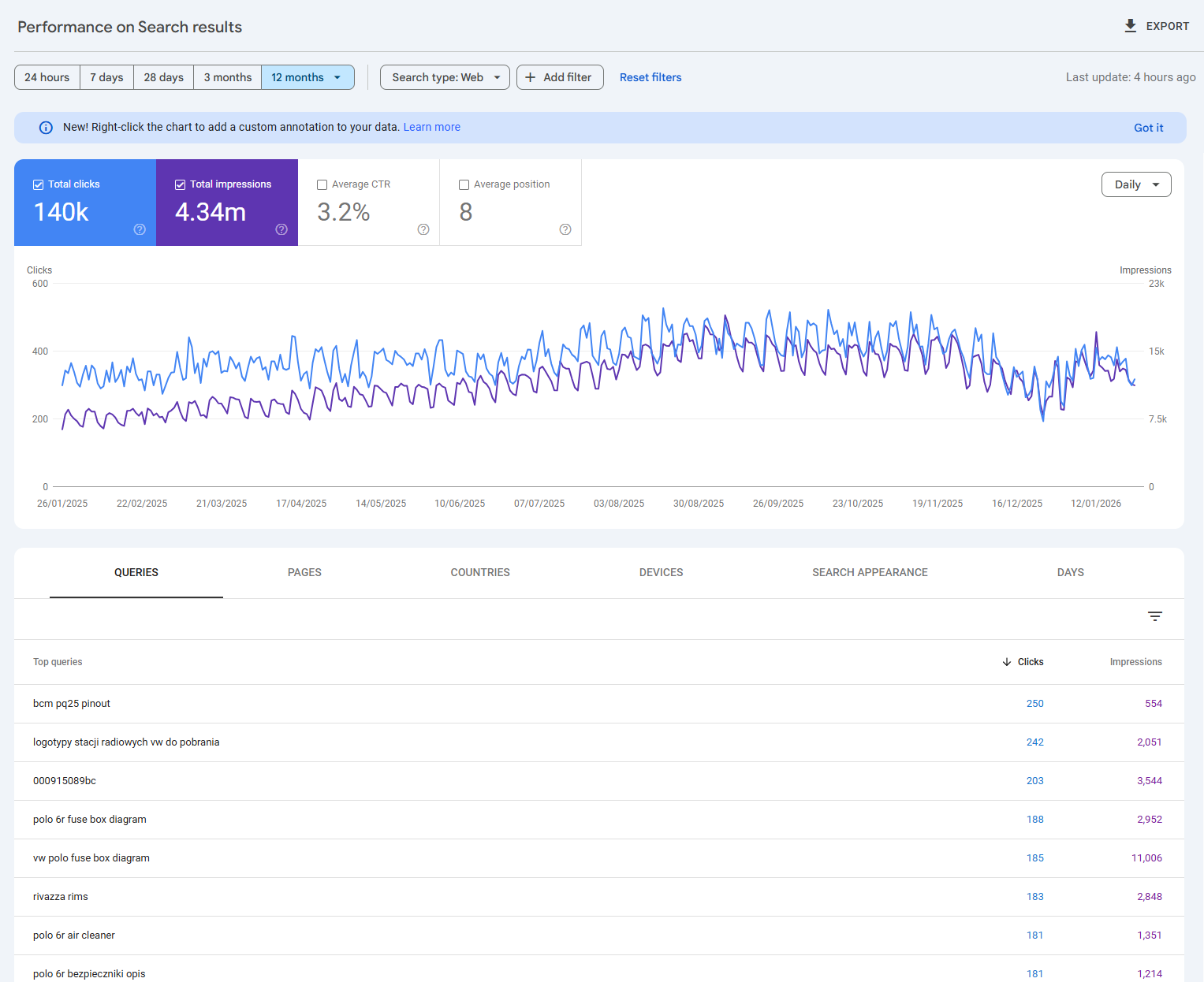
Example: If you notice a page has many impressions but low CTR, try improving the title or description to encourage clicks.
4.3 Indexing and Coverage
- Check which pages are indexed and which have errors.
- Fix errors like “404 Not Found,” “noindex,” or Googlebot access problems.
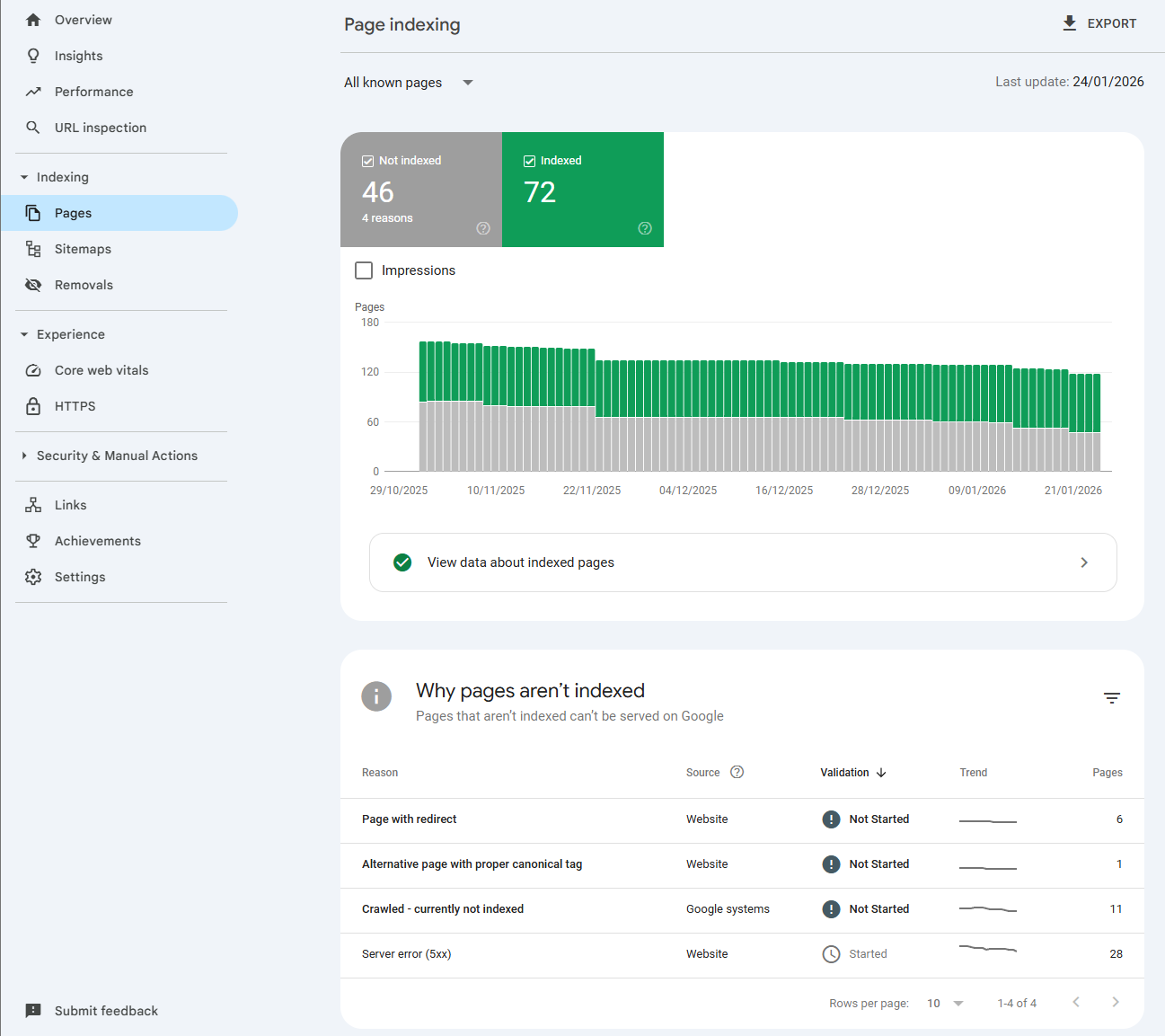
Important: Fewer errors mean better site visibility.
4.4 Sitemaps
- Submit your sitemap.xml file to GSC — this helps Google find all your pages faster.
- Update your sitemap after any major site changes.
You can generate sitemaps automatically using popular CMSs or SEO plugins.
4.5 Enhancements
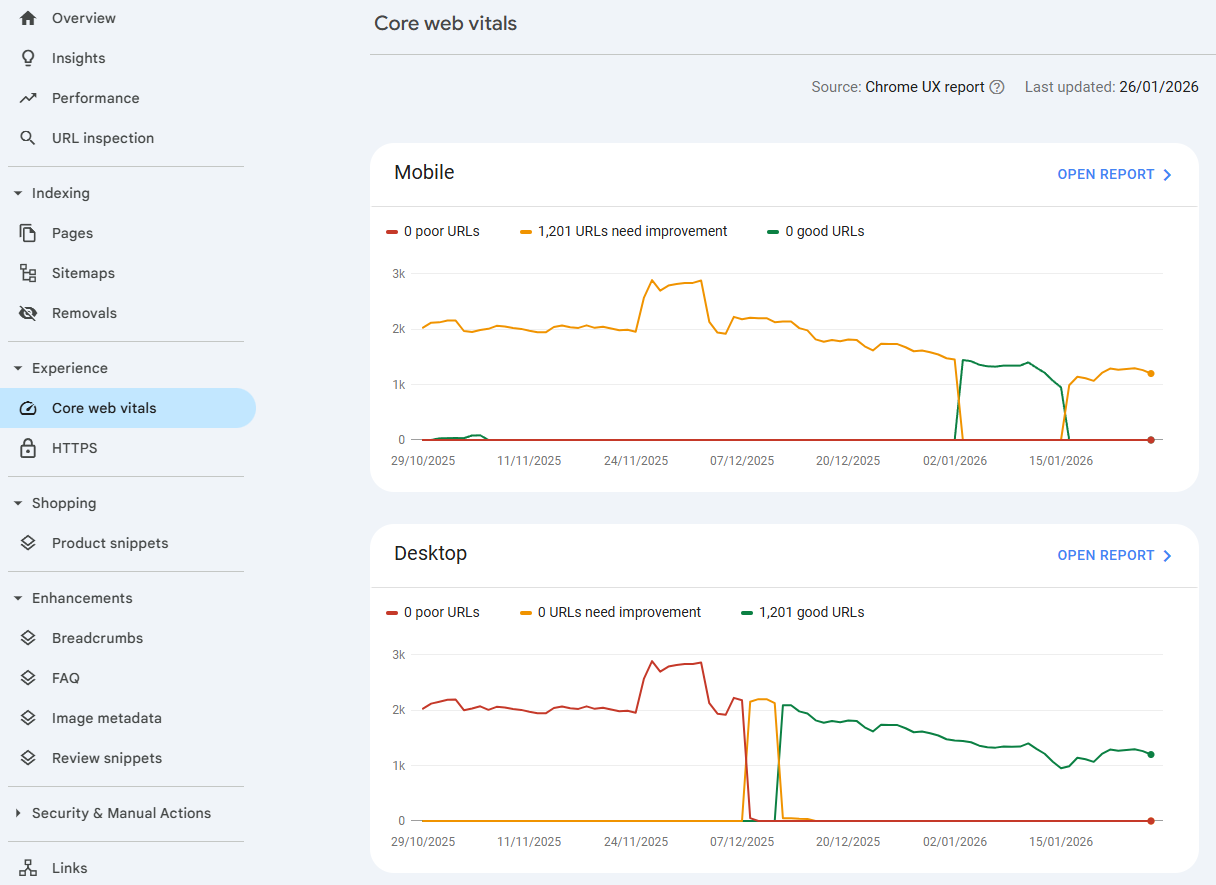
- Monitor Core Web Vitals: loading speed, interactivity, and visual stability.
- Check structured data (schema.org) correctness, which can enrich your search result appearance (e.g., rating stars, FAQ).
4.6 Manual Actions and Security Issues
- Manual Actions: GSC will inform you if Google has penalized your site (e.g., for spam, unnatural links, thin content). This requires immediate action, fixing the problem, and submitting a reconsideration request.
- Security Issues: This report warns about problems such as malware, phishing attempts, or site compromises. Resolving these issues is an absolute priority.
4.7 Links
- Analyze links pointing to your site (internal and external).
- Detect and report spammy links that could harm your SEO.
4.8 URL Inspection Tool
- Test individual pages for indexing and structured data correctness.
- Check if Google sees the latest changes on your page.
4.9 URL Removal
- Temporarily remove outdated or incorrect pages from the index.
- Remember that permanent removal requires the appropriate status code (e.g., 410).
5. Advanced Features and Strategies in GSC
Basic GSC features are just the beginning. The true power of the tool lies in its advanced analytical and diagnostic capabilities.
5.1 Advanced Query Analysis in “Search Results” Report
- Data Segmentation: Use filters to compare results by search type (web, images, video), date, page, country, or device. This allows you to optimize content for different formats and audiences.
- Identifying “Hidden Gems”: Look for queries with high impressions but low CTR and average position (e.g., 8-15). These are high-potential phrases that can quickly advance with minor optimization (e.g., improving
titleandmeta description). - Query Change Analysis: Regularly monitor new queries appearing in the report. This can indicate new trends or the need to expand content.
5.2 Effective Indexing Management
- Indexing Status Report: Prioritize fixing errors (4XX, soft 404), analyze page exclusion reasons (e.g., “redirect”, “discovered - currently not indexed”), and ensure important pages aren’t accidentally blocked by robots.txt.
- URL Inspection Tool: Debug issues with individual pages. See how Googlebot renders the page, whether it’s indexed, and if there are mobile usability issues.
- Multiple Sitemaps: For large sites, consider splitting the sitemap into smaller, thematic files (e.g.,
sitemap-blog.xml,sitemap-products.xml). This makes it easier to diagnose problems in specific sections.
5.3 Performance and Enhancement Reports Interpretation
- Core Web Vitals: Analyze problematic URLs, group them by templates (e.g., category pages, products), and prioritize optimization.
- Mobile Usability: Ensure your site offers excellent experience on smartphones.
- Structured Data (Schema.org): Fix errors preventing rich results display and test markup using the “Rich Results Test” tool.
5.4 Integration with Other Tools and Automation
- Google Analytics: Connect GSC with GA to analyze query data in the context of user behavior on the site (e.g., session duration, bounce rate).
- GSC API: Use the API to automate data collection and create custom reports — invaluable when managing multiple sites.
- Redirect Automation: GSC API allows you to export a list of all pages with 404 errors to CSV. Based on this, you can automatically generate 301 redirects — a simple script that fetches data from the API, analyzes broken URLs, and creates redirect rules (e.g., in
.htaccess, nginx configuration,_redirectsfile in Netlify, or directly in the application). For large sites, this is a huge convenience, eliminating manual creation of hundreds of redirects.
6. Common GSC Mistakes and How to Avoid Them
Even experienced users make mistakes. Here are some of the most common pitfalls:
- Misinterpreting “Discovered - currently not indexed” status: This status doesn’t always indicate a problem. Sometimes Google decides the page isn’t valuable enough to index. Instead of forcing indexing, focus on improving content quality.
- Ignoring “Soft 404” errors: These are pages that return 200 OK but Google considers them empty or nearly empty. They’re treated like 404 errors and can waste crawl budget.
- Overusing the URL removal tool: This is a temporary tool. Using it for permanent removal is a mistake. For permanent removal, use the
noindextag or 410 status code. - Focusing solely on click numbers: Also analyze CTR, average position, and impressions. Low position with high impressions may indicate great potential.
7. Sources
8. Summary
Google Search Console is a powerful and free tool that helps you understand how Google sees your site and improve its visibility.
Don’t wait — set up a Google Search Console account and start optimizing your site today!


